
Import Product Data From Google Sheets
With Describely's Google Sheets integration, importing your product data is easier than ever. This feature lets you connect a Google Sheet to Describely, automatically mapping data and streamlining your content generation.
Important: This connection is a one-way import. You can import data from Google Sheets into Describely but cannot export data back to Google Sheets at this time.
In this article
Connect to Google Sheets
- From the dashboard, click Import Products.
-
Select the Import from Google Sheets option.
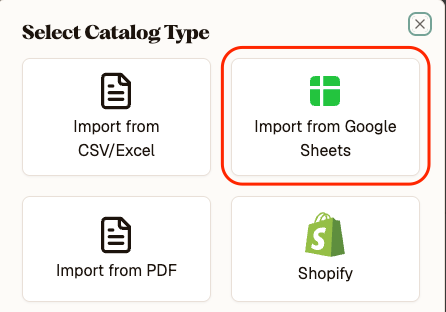
- At the bottom, click the green Authorize Google Sheets button.
- Sign in with your Google account and grant Describely read-only access to your spreadsheets. Voila!
Add your spreadsheet
After authorizing Google Sheets, follow these steps to upload your spreadsheet:
- Click the green Browse Google Sheets button and choose the file you'd like to import.
- Specify the sheet name and data range (e.g.,
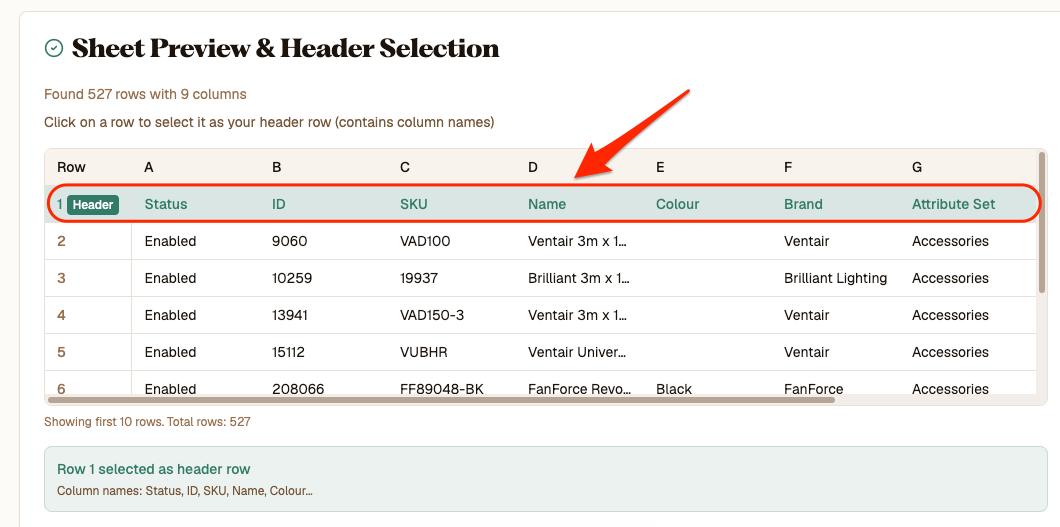
Sheet1!A1:F100) that contains your product data. If done correctly, you’ll see a preview of your spreadsheet below. - Optional: If you changed the default range in the step above, make sure to click Reload Sheet!
-
Click on the row that contains your column headers (typically the first row). This helps Describely understand the structure of your data.
Map data & finalize
- At the bottom, click Continue to Field Mapping.
- Choose how to import these products.
- Create new products
- Skip duplicates
- Merge with existing products
- Select the product catalog you want to import into, or create a new one by clicking Create New Catalog.
- Describely’s AI will attempt to automatically map your sheet’s columns to the platform’s default fields. Here, you can:
- Accept AI-suggested matches
- Manually map unmatched columns to custom fields
- Leave unnecessary fields (like inventory levels or internal IDs) unmapped to exclude them from content generation
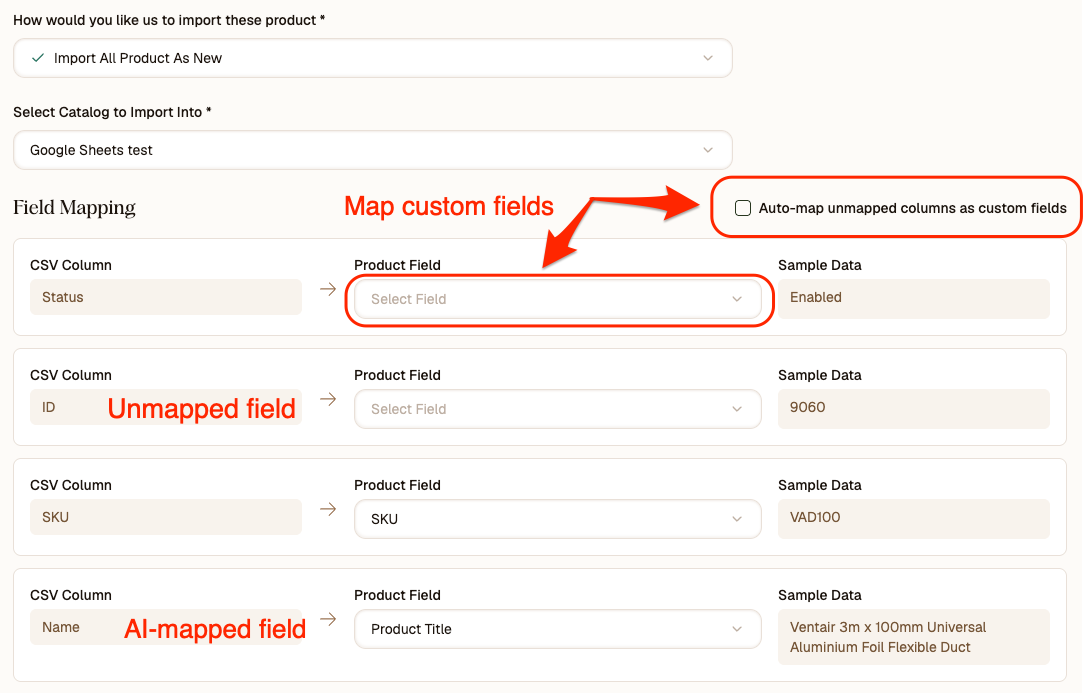
Tip: You can map remaining columns as custom properties in bulk or one by one.
5. Once everything is set, click the Import from Google Sheets button.
🎉 That’s it! Your Google Sheets data has now been imported, and you're ready to start creating content.