
How to Organize Product Catalogs with Saved Filters & Group Types
In this article
- Group Types vs. Saved Filters
- Creating a saved filter
- Editing or deleting a saved filter
- Ideas & recommendations
Group Types and Saved Filters in Describely can be creatively used to identify subsets of products that share common specifications, attributes, or fields. This allows you to quickly view and manage only the relevant products for the task at hand.
Group Types vs. Saved Filters
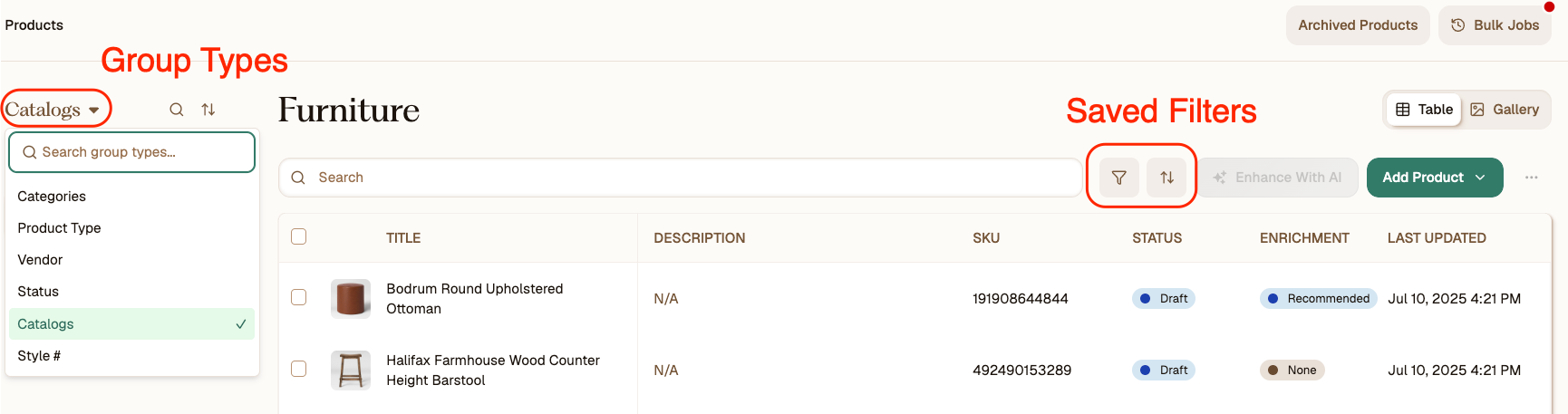
Group Types:
- Group types are great to change your catalog view fast by common attributes like Product Status, Vendor, and Category.
- If you created your catalog from a CSV or PDF, you can use Group Types to switch between product subsets based on your custom fields.
- For example, easily see which products are activated in your current billing cycle with the "Unlimited Generations" Group Type:

Saved Filters:
- A saved filter is a set combination of filters and sorting arrangements based on Describely's default fields.
- Within every catalog, you'll see a ribbon above your products where you can create, edit, and toggle between your Saved Filters.
Creating a Saved Filter
Create a custom Saved Filter using the steps below!
- On the right, click the filter icon.
- Scroll to the field you'd like to filter by.
- Set up and save the filter based on your preferences.
- Add any sorting or additional fields to narrow the filter according to your needs. Voila!
Important: All Saved Filters are accessible across catalogs. To get back to your Saved Filters in the future, just click the filter icon.
To close an open Saved Filter, click the X button on the left side.
Editing or deleting a saved filter
Select the Saved Filter you'd like to edit, and click the pencil button at the top of your catalog to manage it. See tips below!
-
To delete a Saved Filter, open it through the filter icon, and click the trashcan icon on the left side.
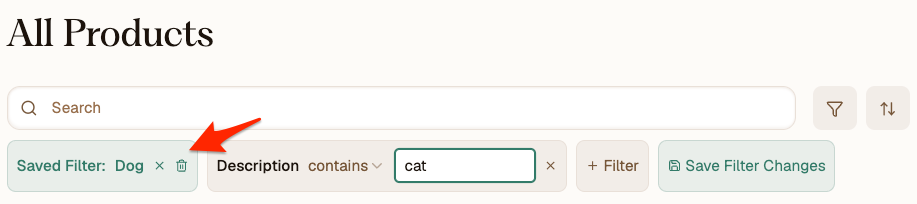
- To save edits to an existing Saved Filter, click the green Save Filter Changes button on the right.
Ideas & recommendations
We've created a Glossary with several ideas & recommendations for your own catalog organization. Reach out to our team at support@describely.ai if you need any help!