
Audit Products for GEO & Conversions
In this article
Overview
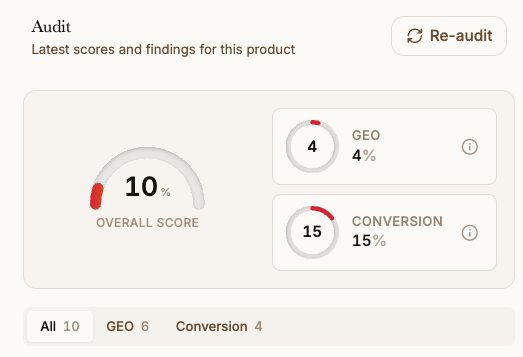
Describely's Product Audit scores your product content for AI and search visibility, then walks you through fixing the gaps it finds.
GEO (Generative Engine Optimization) runs on factual, concrete data. An LLM is only as good as the data you give it. So if a product page is mostly marketing fluff with no real attributes, it won't perform well in AI-powered discovery. Product Audit shows you where that's happening and helps you fix it, one product at a time.
Worried about fluff? Describely's audit rewards (and helps you add more) concrete facts, NOT adjectives. "Water-resistant 30L nylon backpack with a padded 15-inch laptop sleeve" beats "the perfect bag for every adventure" every time.
How Audit scores products
Each product gets scored across two areas:
- GEO: how well your content is set up for AI and generative search
- Conversion: how well your content is set up to convert shoppers
Every score is expandable. Click into a score and you'll see exactly what's being graded, so you're never guessing why a product landed where it did.
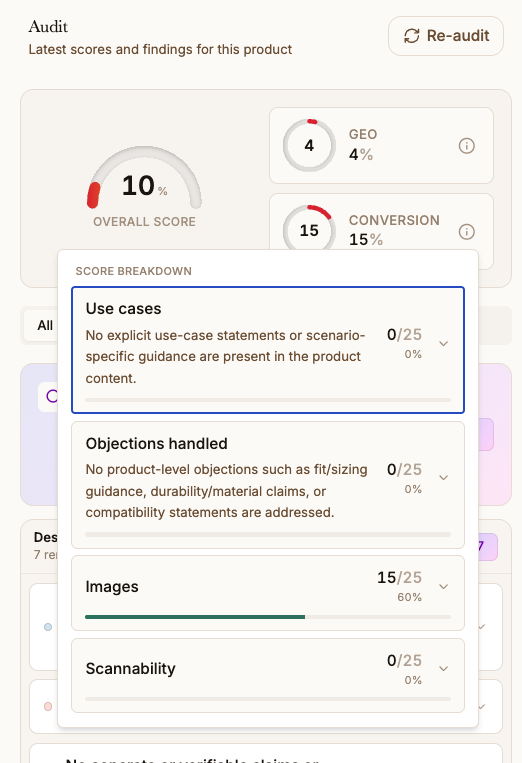
What Each Section Covers
Inside a product, the audit groups everything by field so you can see where the gaps are:
- Meta: your meta title and description
- Images: product images
- Description: the product description
- Info: details pulled from your storefront (if connected via Shopify or other integration)
Info is a bit different from the rest. It's read-only context pulled straight from your storefront, so there's no fix button there. It's there to explain what we already know about the product. You can't edit it inside the audit.
Run an Audit & apply fixes
- From your catalog, select the products you'd like to Audit and click Enhance on the top right > Audit. If you prefer to audit one product at a time, click into any product and open the shield icon on the top right.
- Click Start Audit.
- Once an audit runs, you'll see the product's scores and the fields that need work.
- Then, you can start automatically fixing issues or manually add your own missing product data to improve your visibility score.
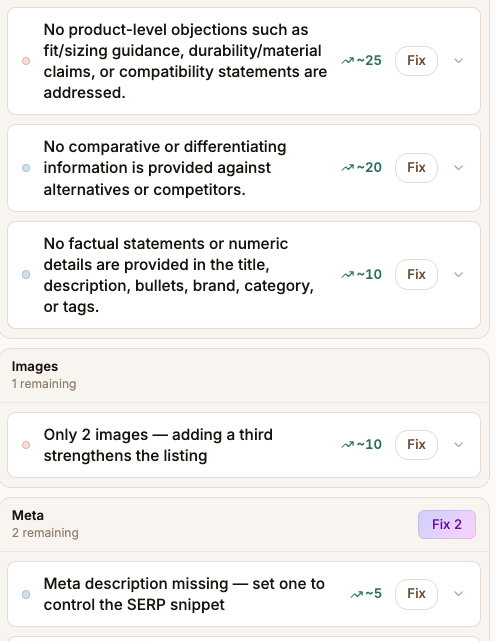
Fixing a Product
If a product has very little data, you'll see a Fix button. Here's what happens:
- Product Audit kicks off a guided question flow and asks you for factual details about the product.
- It auto-populates whatever it can from the data already on the product, so you're only filling real gaps.
- You answer the questions you can. If you skip one, the system won't make something up to fill it. It only uses what you actually provide.
- It generates updated content from your answers. Review it and click Approve.
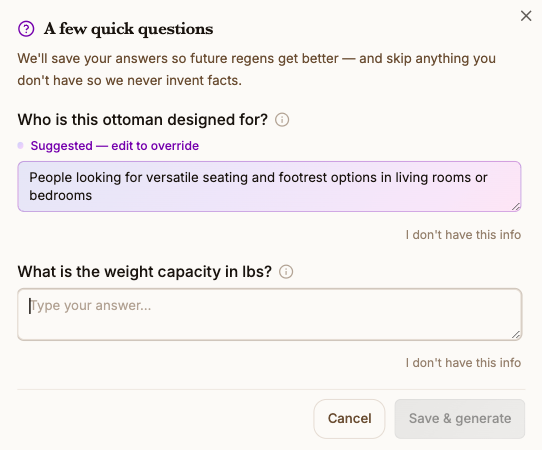
Note: Skipped questions stay empty on purpose. Product Audit won't invent a spec or attribute it doesn't have.
Fixes work as a loop. As you keep answering, it keeps asking for more so it can improve future generations. It can't fix everything in one pass if the product started with nothing, so it works best when there's some decent data to build on.
Important: Your score re-audits whenever content changes, not only when you approve. Edit and save a product's content and the score updates to match.
Adding Your Own Product Data
The audit is only as strong as the data behind it, so there are a couple of ways to add more before or during a fix.
- Manually fill in missing data: During the questions, you can manually add the missing attributes to store in your catalog and integrate into your content.
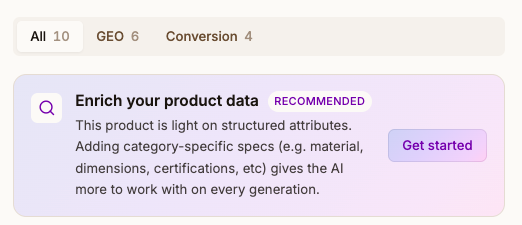
- Run data enrichment: When a product has sparse data, you'll see a data enrichment notice at the top. Starting it kicks off an enrichment job in the background. It surfaces the attributes it finds in the panel on the left, so you review and approve what gets added.
Note: Any data you enter in this flow or retrieve from data enrichment is saved as a unique field on the product record in Describely.