
Manage Your Shopify Store
In this article
- Connect to Shopify via the Shopify app
- Map in metafields
- Generate content in bulk
- Generate content individually
- Create new products
Connect to Shopify via the Shopify app
Describely offers an easy way to connect your Shopify store in just a few steps through the Shopify App Store.
- While logged into your Shopify account, navigate to the Shopify App Store and search for Describely, or click here to head directly to the app.
-
Select the store you'd like to connect to Describely and click Install.
Note: Only the store admin can install the Describely app. All other users can access the software from our website once they've been invited to the Describely account.
- Once the app is installed, navigate to the bottom of Shopify's left sidebar and click Apps.
-
Select the Describely app to launch it in a new browser tab.
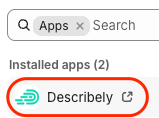
- For security purposes, an authentication code will be sent to the email linked to your Shopify store. Enter this in Describely to access the app. Voila!
Need to import new products after you've connected your store to Describely? Click the Sync button on the top of your catalog! Learn more about syncing from your store here.
Map in metafields
Important: At the top of your catalog, you'll see a few options to pull new data in. Use "Sync" to bring in new products / new content from Shopify into Describely. Use "Field Mapping" to map additional metafields from Shopify to Describely products.
Mapping in your Shopify metafields ensures Describely has access to the right product attributes and specifications to create quality content.
Here's how to bring metafields into your catalog:
- From the top right of your Shopify catalog, click the Field Mapping button.
- Scroll past Describely's Default fields (these are locked for editing and cannot be changed at this time) to fields labeled as Meta.
- Unmapped metafields can be mapped to custom fields one at a time (by clicking Select target field > Add as a custom field) OR all at once using the checkbox at the bottom of the mapping screen.
- If you'd like to leave a metafield out of your content, leave it unmapped.
- When you're ready, click Save Mapping to bring in your new data for all products. These will now be used when you create content!
Important: If at any point you create new metafields in Shopify, return to this screen to bring them in. This is not done automatically.
Generate content in bulk
- After you import your products, Describely will automatically generate a custom ruleset to guide your AI-generated content. 🎉 This can be modified at any time.
- Learn how to create and optimize product titles, descriptions, meta tags, and more for multiple products at once in this article.
- When you're ready, publish your content to your store! You can even map custom content fields back to your metafields.
Create new products
- On the right side of your Shopify catalog's toolbar, click Add Product.
- Select Create Product, and choose the catalog to add it to OR create a new one.
- Enter any existing product fields. A Product Title is required (don't worry, you can easily create a new one if needed).
- On the top right corner, click the Enhance button, and select your content ruleset and the fields you'd like to create.
- Click Generate.
- Once it's ready, review and approve the new fields, make any needed edits, click Save Changes, and publish. Voila!